This guide provides an overview of the meeting spaces available to users and how to use them. There are a total of 48 rooms available located on 4 different floors.
Fully enclosed rooms designed for larger gatherings, accommodating more than four people. Identified by size designation:
S Small
M Medium
L Large
XL Extra-Large
Compact spaces for quick discussions or small team meetings, seating up to four people.
Look for distinctive colorful booths on the floor or find them in Outlook by the "H" at the end of the room number.
All meeting rooms include:
Depending on the version of Outlook used, you can reserve meeting rooms by using Room Finder or the traditional method of selecting the rooms.
Select Location and search for your desired room. The capacity information shown in the list will help you choose an appropriate room.
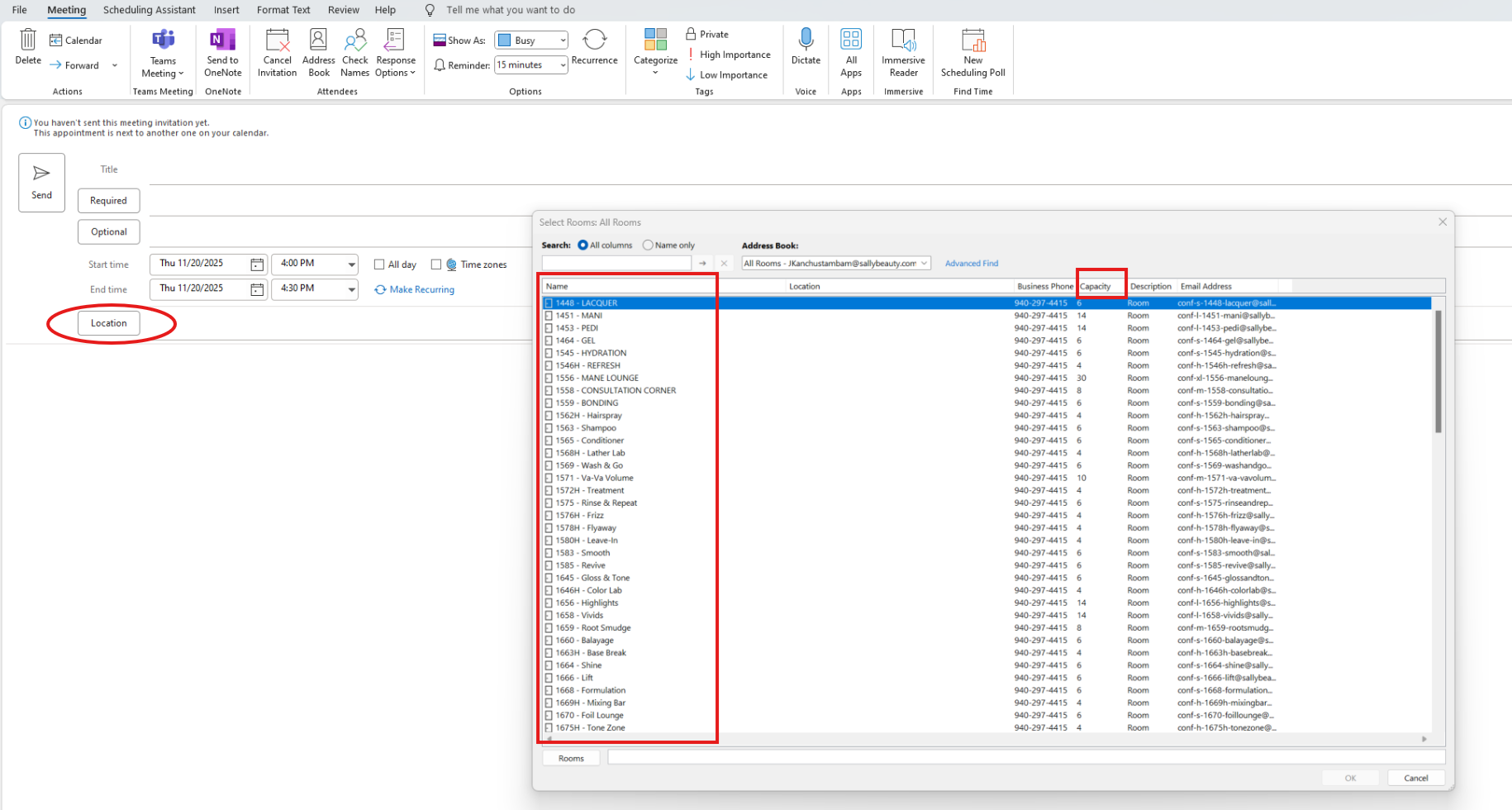
(fig. 1) - Selecting room location in Outlook
To access Room Finder, click the Room Finder button located on the right side of the screen.
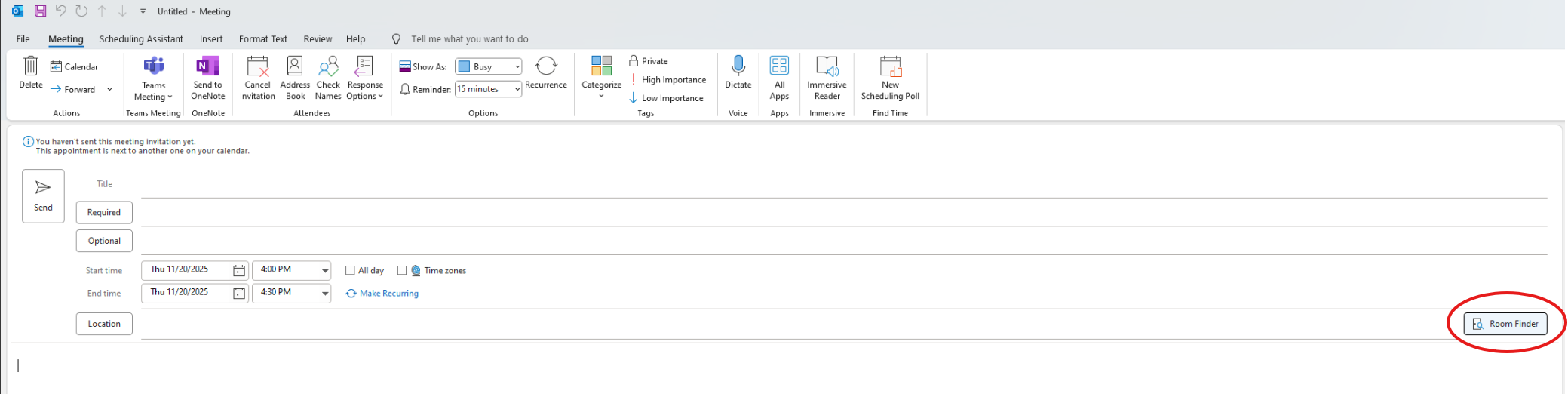
(fig. 2) - Room Finder button location
That will bring up Room Finder Panel on the right where you can select the floor or capacity, based on which, it will suggest you the room.
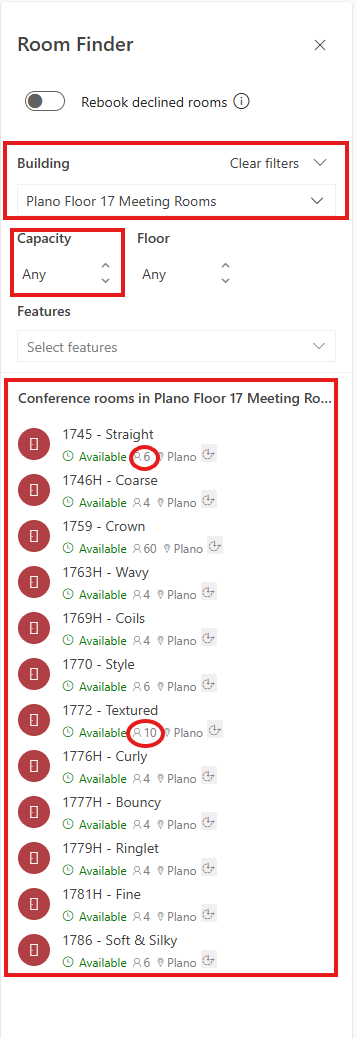
(fig. 3) - Room Finder panel with filters
Occasionally, you may have an unplanned meeting or may forget to reserve a room in advance. In these situations, if you locate an available room, you can book it directly from the scheduler or your phone (requires the Teams app with Sally login).
The scheduler should show if a room is available or not. If a room is free, tap the 'Reserve' button and choose the 'end' time to complete your booking.
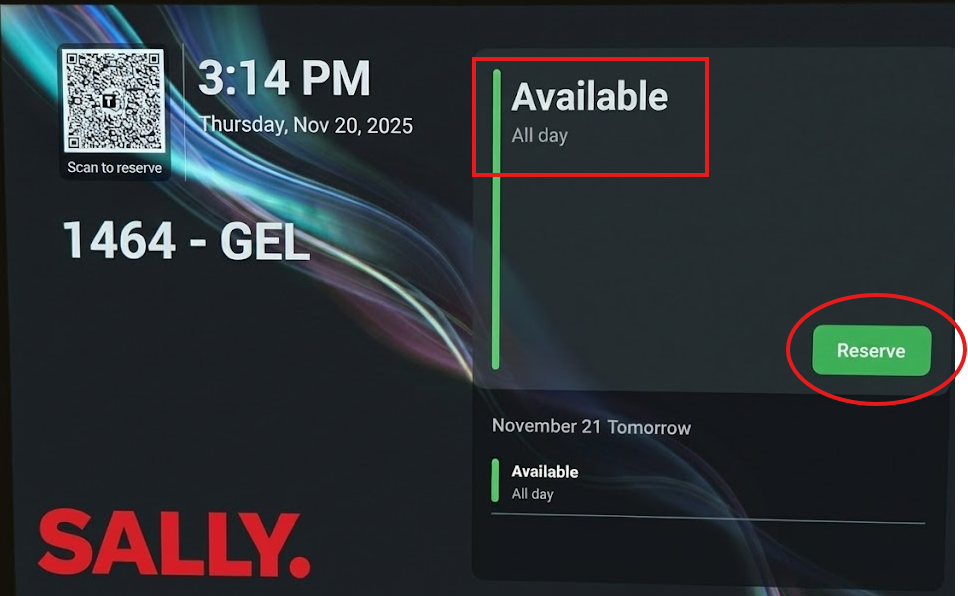
(fig. 4) - Reserve button on door scheduler
To book a same-day or future meeting room with your phone, simply scan the QR code on the scheduler and follow the on-screen prompts to complete your reservation.

(fig. 5) - QR code on door scheduler for mobile booking
All meeting rooms now require users to check-in. This can be done by:
A reminder email will be sent 5 minutes after the scheduled start time if no check-in has been recorded.
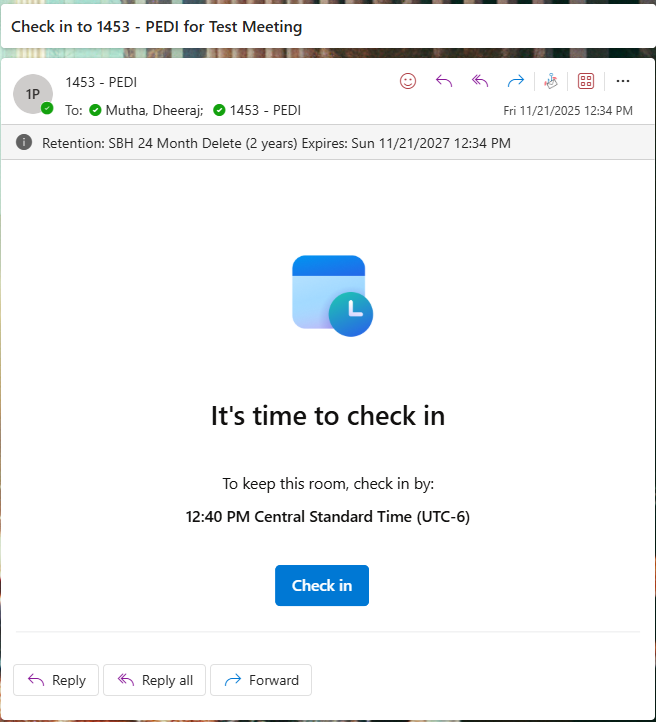
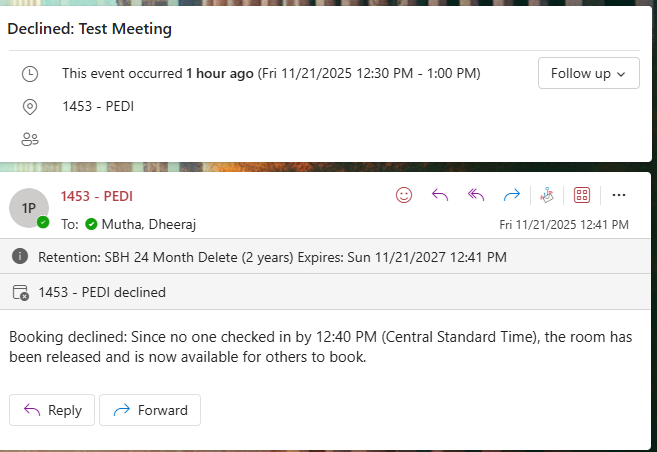
(fig. 6) Check-in button | (fig. 7) Reminder email
If your meeting ends early, please remember to check-out through the door scheduler. This will ensure releasing the room for others to reserve.
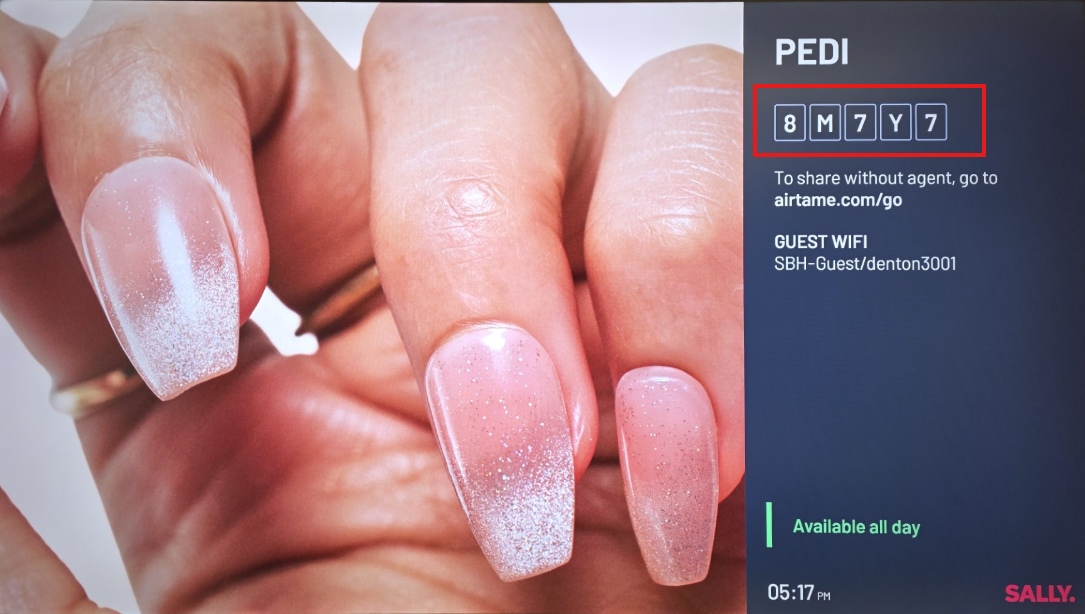
(fig. 8) - Airtame information screen
The Airtame information screen should be visible upon entering the room. Your screen can be shared by:
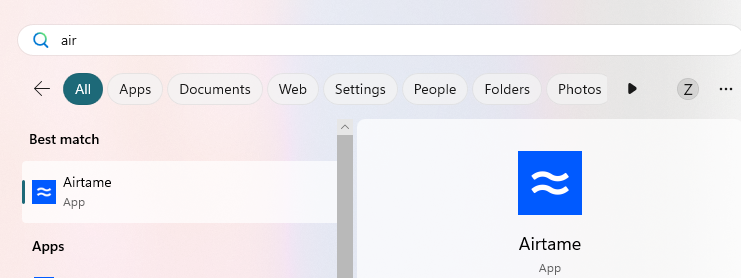
(fig. 9) - Airtame app on laptop
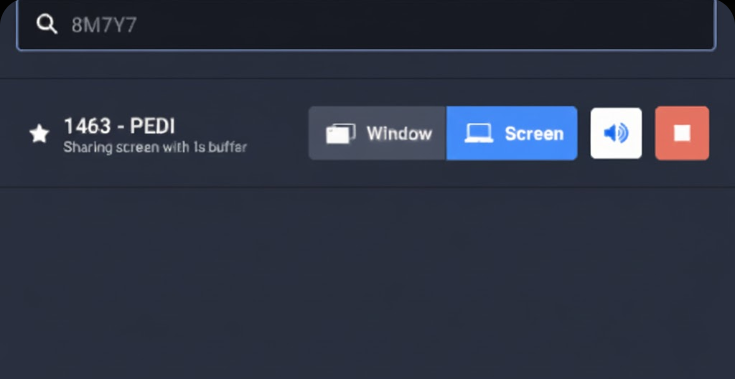
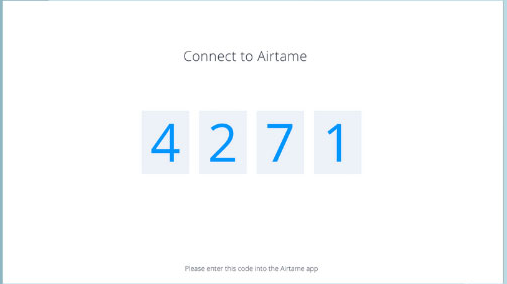
(fig. 10) Enter room code | (fig. 11) Enter PIN from TV
If for any reason you are unable to see the Airtame Screen on the TV, use the table controller to activate the sharing session.

(fig. 12) - Activate Airtame from table controller
For users who do not have Airtame app installed in their laptop (e.g., third-party vendors visiting Sally), Airtame can be accessed through the web browser at:
All the details can be seen on the TV screen.